

Docker For Beginners: Learning Notes
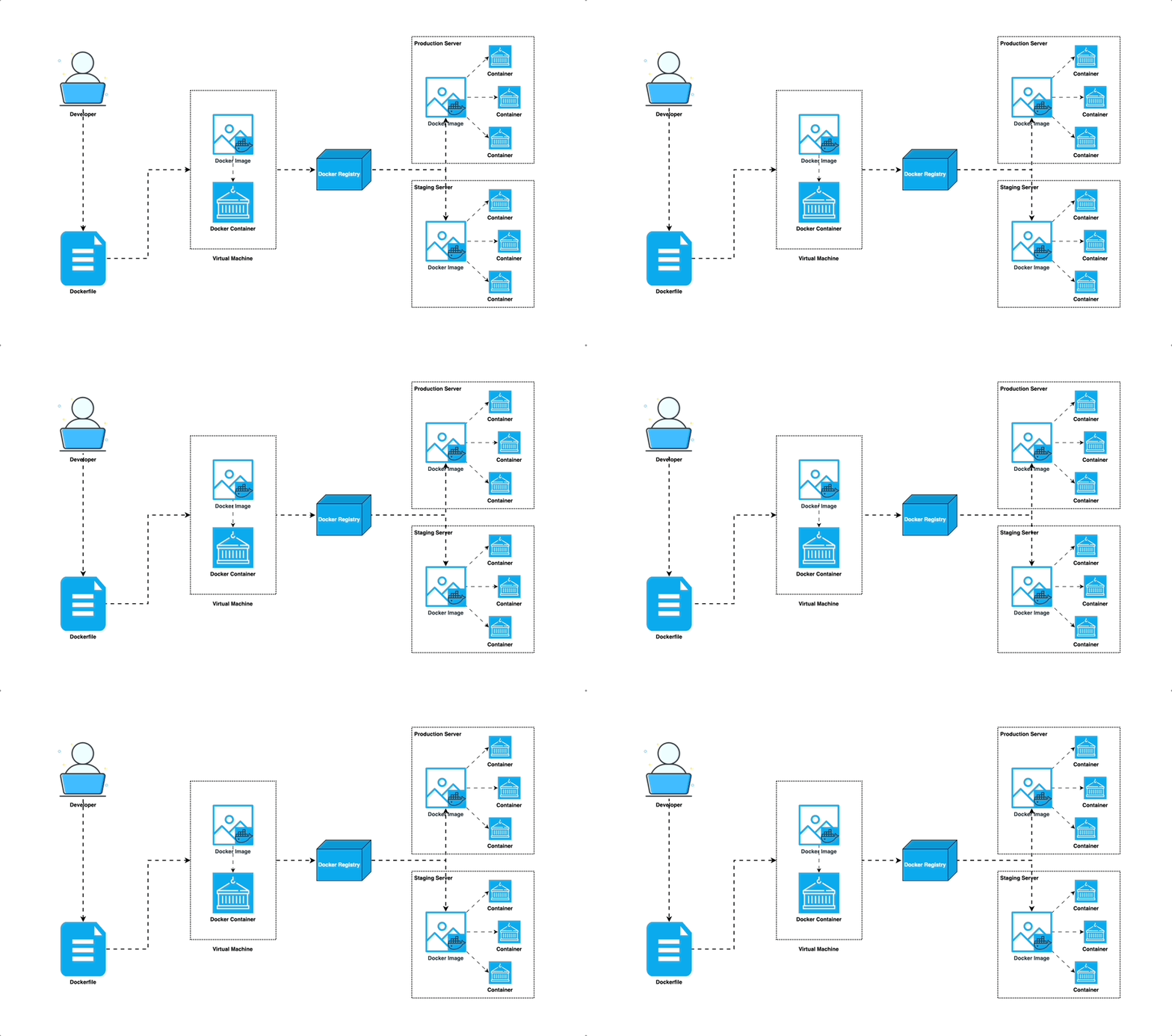
What is Docker?
Docker is a Containerization platform that simplifies packaging, deploying, and running applications. It bundles applications and their dependencies into CONTAINERS, ensuring consistent behavior across different environments. Docker enhances efficiency and reliability, supports microservices and scalable applications, and provides tools for managing containers and secure environments. Dockerfiles define application environments, and container images can be shared across teams. Docker revolutionizes modern software development by improving development, testing, and deployment processes.
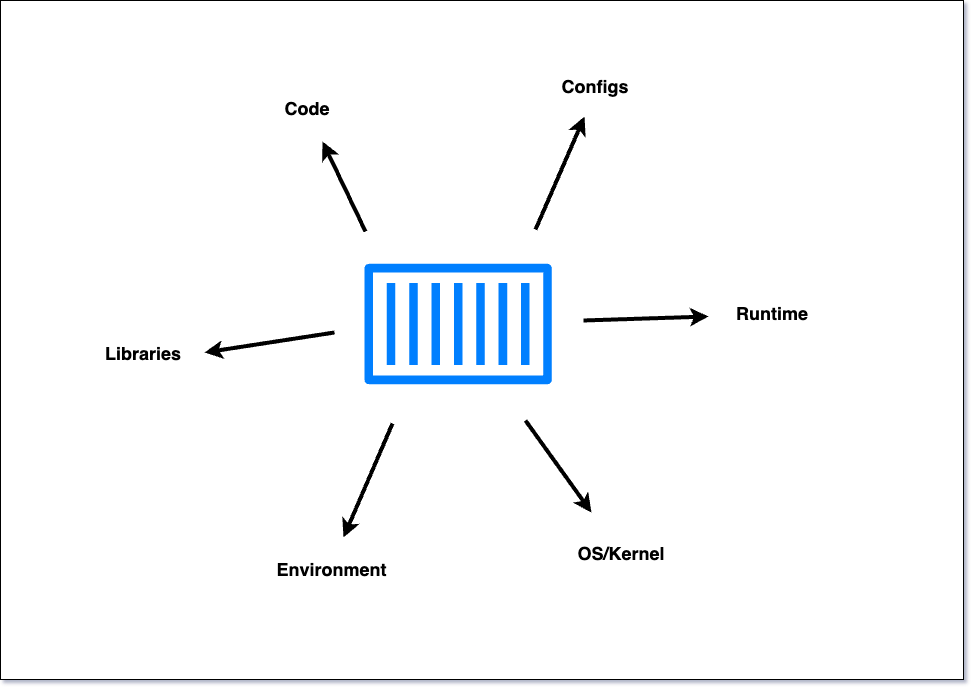
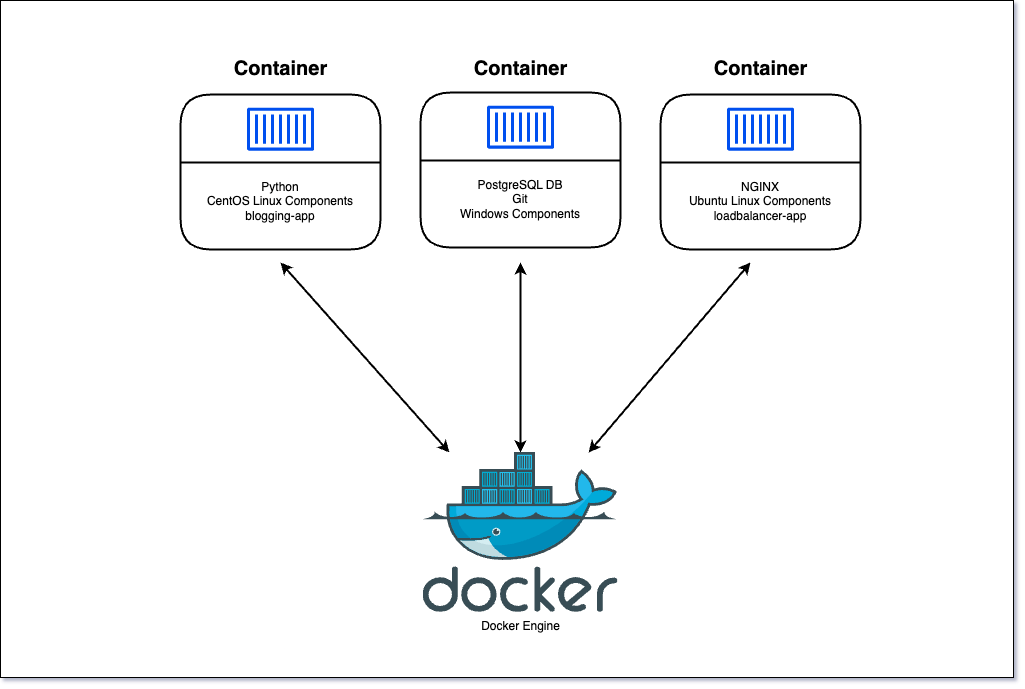
What is containerization? 📦
Containerization is a lightweight form of virtualization that encapsulates an application and its dependencies into a unit called a "container." This container includes everything needed to run the application, ensuring it works consistently across different environments. Unlike traditional virtual machines, containers share the host system's OS kernel, making them more efficient and faster to start. This approach simplifies deployment, enhances scalability and portability, and enables rapid, reliable development.
By isolating applications, containerization minimizes software conflicts and streamlines management.
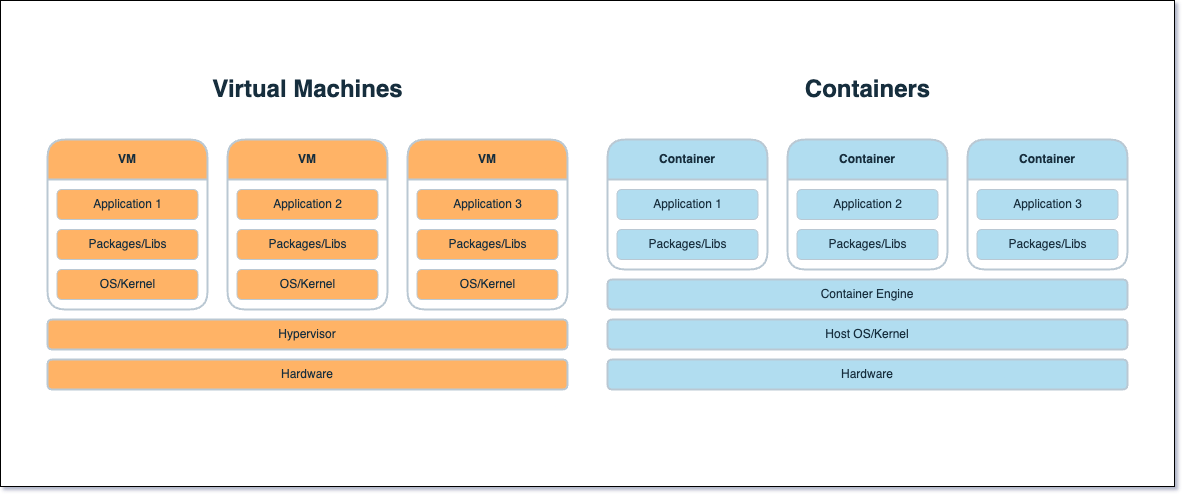
Difference between VMs & Containers
| Aspect | Containers | Virtual Machines |
| OS | Share host’s Kernel | Has its own Kernel |
| Resource Usage | Lightweight, efficient | Heavier, more resource usage |
| Startup Time | Quick start | Slower start |
| Isolation | Process-level separation | Full OS isolation |
| Portability | Highly portable | Compatibility concerns |
| Resource Overhead | Minimal overhead | Higher overhead |
| Isolation Level | Lighter isolation | Stronger isolation |
Learning Resource:
Containers vs VM - Difference Between Deployment Technologies - AWS
Advantages of Containerization
Increased Portability
Easier Scalability
Easy and Fast Deployments
Better Productivity
Improved Security
Consistent test environment for development and QA.
Cross-platform packages called images.
Isolation and encapsulation of application dependencies.
Ability to scale efficiently, easily, and in real time.
Enhances efficiency via easy reuse of images.
Disadvantage
- Compatibility issue: Windows container won’t run on Linux machines and vice-versa
Other disadvantages(I’m Marcopolo of these discoveries) 😎
Counter-productivity or efficiency-draining issue: Hard to turn a 5-minute task into a 5-hour task
Troubleshooting issue: It will be hard, to be able to find tons of dependency issues
Installation:
Docker Architecture
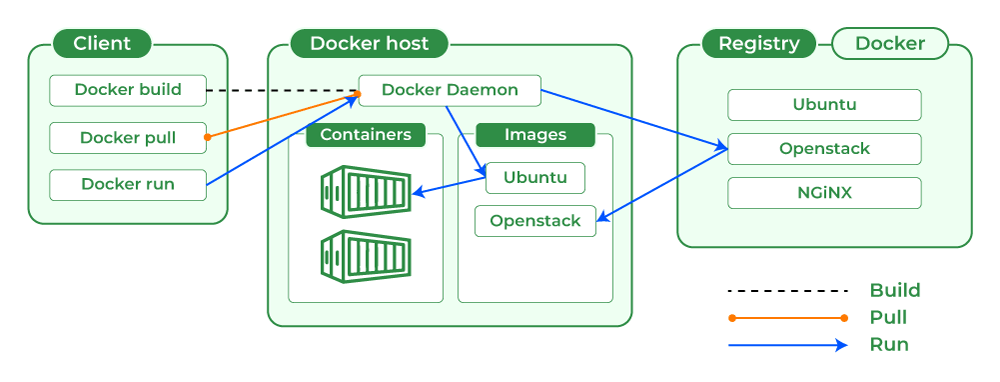
Docker uses a client-server architecture to manage and run containers:
Docker Client:
The Docker client is the command-line interface (CLI) or graphical user interface (GUI) that users interact with to build, manage, and control Docker containers.
It sends commands to the Docker daemon to perform various tasks.
Docker Daemon:
The Docker daemon is a background process that manages Docker containers on a host system.
It listens for Docker API requests and takes care of building, running, and managing containers.
Docker Registry:
Docker images can be stored and shared through Docker registries.
A Docker registry is a repository for Docker images, and it can be public (like Docker Hub) or private.
Docker Hub:
Docker Hub is a cloud-based registry service provided by Docker, where users can find, share, and store Docker images.
It serves as a central repository for Docker images.
Here's a high-level overview of how Docker components interact:
The Docker client sends commands to the Docker daemon and receives information about containers and images.
Docker images are fetched or built from the Docker registry.
The Docker daemon handles the creation, starting, stopping, and management of containers.
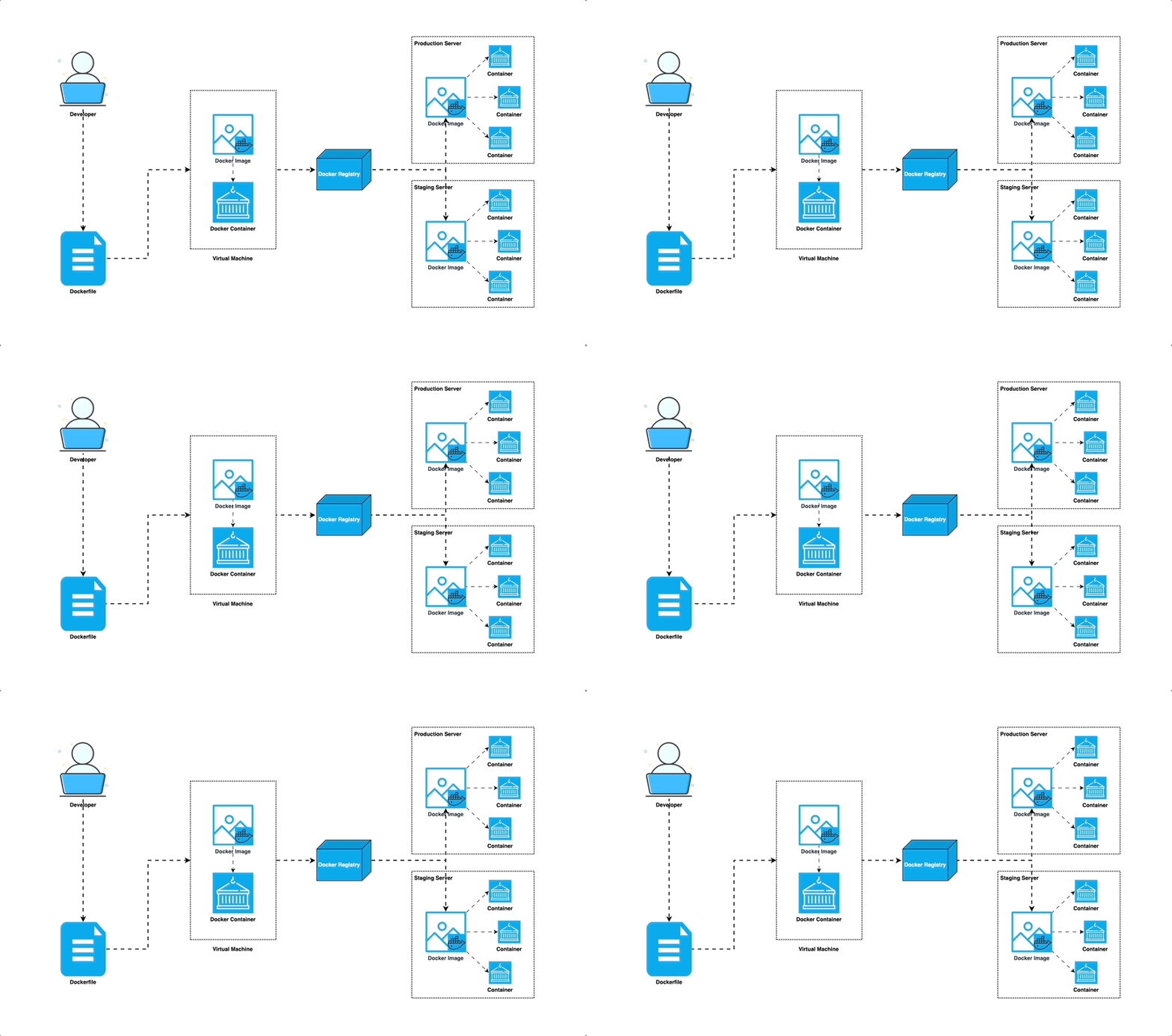
Docker Workflow
More on Docker? - Ufffsss!!!!!

Dockerfile Instructions
Please click here.
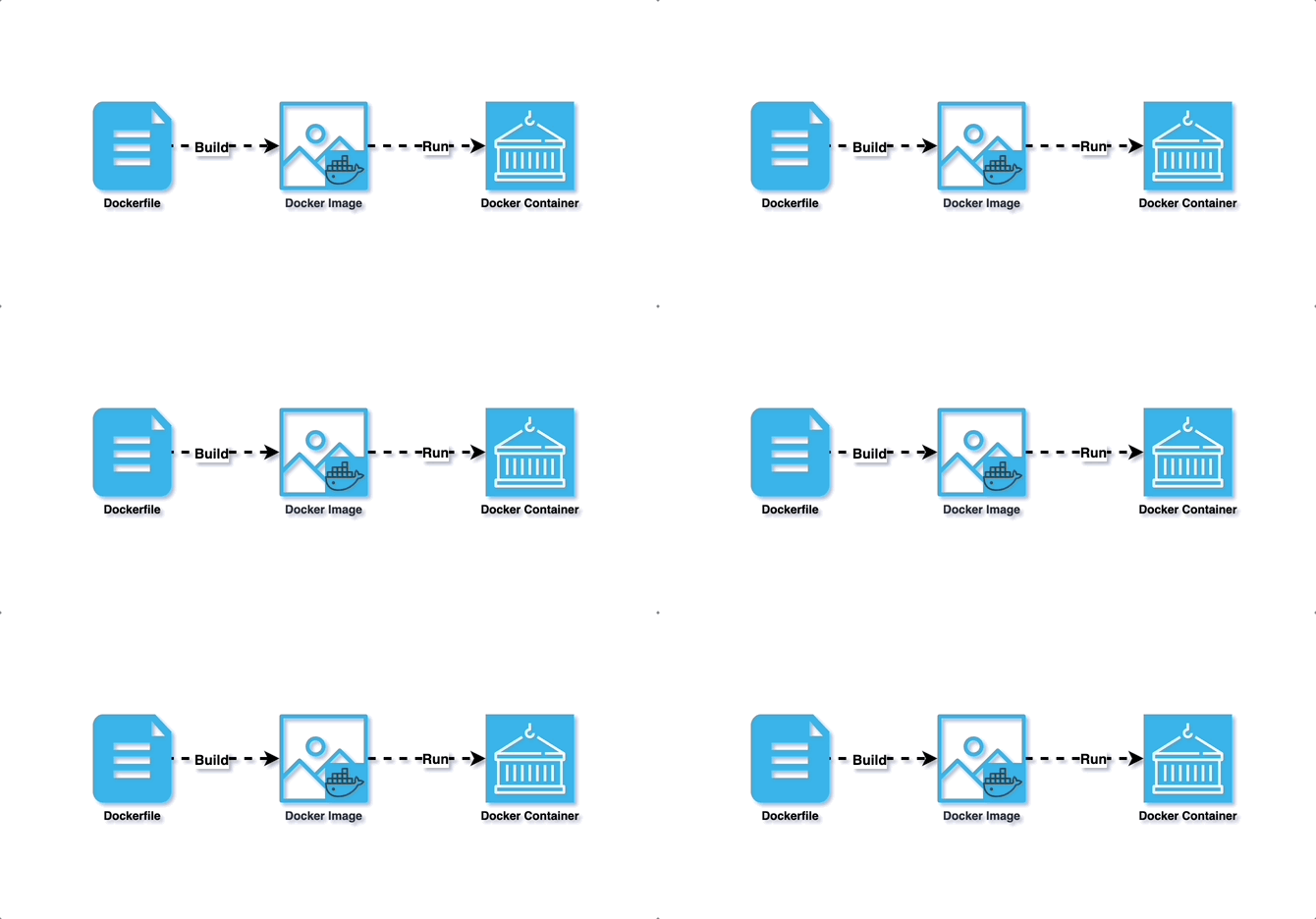
Docker Image
A Docker image is a read-only template with instructions to create a container on the Docker platform. It is the starting point for anyone new to Docker.
Time for a Hands-On? - YEAHHHHH!!!!!

Challenges 😎
Challenge 1
Run a container with the nginx:1.14-alpine image and name it webapp
docker run -p 5000:80 --name webapp -d nginx:1.14-alpine
Challenge 2
Containerize Python application and push the image to DockerHub
Step 1 - Create Python/NodeJS app. (Clone from GitHub) =>Python OR NodeJS
Step 2 - Write Dockerfile for the app
Step 3 - Create image for the app
Step 4 - Run the container for the app
Step 5 - If it works push the image on DockerHub
ENV variables
Purpose: Environment variables in Docker are used to configure applications, control runtime behavior, and manage sensitive information.
Configuration: They replace hardcoded values in configuration files, enabling flexibility across different environments.
Dynamic Behavior: Environment variables can control feature toggles, logging levels, and runtime environments.
Secrets Management: Sensitive data like passwords or API keys can be securely injected into containers using environment variables.
Setting Variables:
Use
ENVinstruction in Dockerfile to set variables during image build.Pass variables with
-eor--envflag indocker runcommand.Define them in
docker-compose.ymlunder theenvironmentkey.In Docker Swarm, set them with
docker service create/updateor in a Docker Compose file for Swarm.
Flexibility and Portability: Environment variables make Dockerized applications easier to manage and deploy across diverse environments.
Challenge 3
Run a container named shrawan-app using image sbmagar/blogging-app and set the environment variable APP_COLOR to green. Make the application available on port 75666 on the host. The application listens on port 5000.
Solution
  docker run -d \\
  --name shrawan-app \\
  -p 75666:5000 \\
  -e APP_COLOR=green \\
  sbmagar/blogging-app
Commands & Arguments
Here, I'll just talk about main two arguments: CMD and ENTRYPOINT 😎:
CMD
# Use a base image
FROM alpine:latest

# Run a sleep command when the container starts
CMD ["sleep", "3600"]
CMD ["sleep", "3600"] ✅
CMD ["sleep 3600"] ❌
it's recommended to use the first form (CMD ["sleep", "3600"]) to specify the command and its arguments as separate elements in a JSON array for clarity and to ensure proper execution.
ENTRYPOINT
ENTRYPOINT is a Dockerfile instruction that sets the main command to run when a container starts. It ensures the specified command is executed, unlike CMD which provides default arguments to the command.
FROM alpine:latest

# Set the sleep command as the entry point
ENTRYPOINT ["sleep"]

# Set a default sleep time of 3600 seconds (1 hour)
CMD ["3600"]
Explanation:
This Dockerfile starts with a base image of Alpine Linux.
The
ENTRYPOINTinstruction specifies that thesleepcommand will be the main command to run when the container starts.The
CMDinstruction sets a default argument for thesleepcommand, specifying the sleep time in seconds. In this case, the default sleep time is 3600 seconds (1 hour).
Override arguments
docker run my_image **1800** # Sleeps for 1800 seconds (30 minutes)
Communication Between containers.
for multiple containers dependent on one another we can command line argument —link
When using the --link option in Docker:
A secure tunnel is created between containers for communication.
Environment variables are set in the destination container, providing details about the linked container.
Docker updates the
/etc/hostsfile in the destination container to resolve the hostname of the linked container.Access to exposed ports in the linked container is provided.
Example
Run MySQL Container: Start the MySQL container with a name
mysql-container, exposing port 3306:docker run --name mysql-container -e MYSQL_ROOT_PASSWORD=password -d mysql:latestCreate a .NET Core Application: Assume you have a .NET Core application that needs to connect to the MySQL database. Build the .NET Core application and create a Docker image for it. Here's a simple Dockerfile assuming the application is published to a folder named
app:FROM mcr.microsoft.com/dotnet/core/runtime:latest WORKDIR /app COPY ./app . ENTRYPOINT ["dotnet", "YourApp.dll"]Run .NET Core Application Container Linked to MySQL: Now, run the .NET Core application container, linking it to the MySQL container:
docker run --name dotnet-app --link mysql-container:mysql -d your-dotnet-image:latest
In this example:
-name mysql-containernames the MySQL containermysql-container.e MYSQL_ROOT_PASSWORD=passwordsets the MySQL root password.-name dotnet-appnames the .NET Core application containerdotnet-app.-link mysql-container:mysqllinks the .NET Core application container to the MySQL container with the aliasmysql.druns both containers in detached mode.
Inside the .NET Core application container, you can access the MySQL database using the hostname mysql and the exposed port. Ensure your .NET Core application is set up to connect to MySQL using the correct hostname and port.
--link option a legacy feature and recommends using user-defined networks for better isolation, scalability, and ease of use in inter-container communication.Docker Compose
To run multiple containers with one command, use a configuration file. Here are some Docker commands:
docker run --name redis redis:alpinedocker run --name redis -d redis:alpinedocker rm redisdocker run --name redis -d redis:alpinedocker run --name luckydrawapp --link redis:redis -p 5000:5000 luckydraw-app:latestdocker rm luckydrawappdocker run --name luckydrawapp --link redis:redis -d -p 8085:5000 luckydraw-app:latest
version: '3.0'
services:
    redis:
        image: redis:alpine
    luckydrawapp:
        image: luckydraw-app:latest
        ports:
            - 5000:5000
Docker Volumes
Docker volumes allow you to save data created and used by Docker containers. They enable data sharing between a host machine and Docker containers or between different containers.
Types of Volumes
Named Volumes: Managed by Docker, easier to use and manage.
Host Volumes: Maps a directory from the host machine into the container.
Anonymous Volumes: Similar to named volumes but managed by Docker with a randomly generated name.
Commands:
Create a named volume:
docker volume create my_volumeRun a container with a named volume:
docker run -v my_volume:/path/in/container image_nameList all volumes:
docker volume lsInspect a volume:
docker volume inspect my_volumeRemove a volume:
docker volume rm my_volumeMount a host directory as a volume:
docker run -v /host/path:/container/path image_name
Dockerfile Example
# Define a volume
VOLUME /data

# Set working directory
WORKDIR /data

# Copy files into the container
COPY . /data
Docker Compose Example
version: '3.8'

services:
  app:
    image: my_app_image
    volumes:
      - my_volume:/app/data

volumes:
  my_volume:
    external: true
Key Points
Volumes are useful for persisting data even if containers are removed.
They can be shared between containers.
Docker volumes are stored in a part of the host filesystem managed by Docker.
These notes provide a solid overview of Docker volumes, including practical examples and commands. They cover named, host, and anonymous volumes, along with how to create, run, list, inspect, and remove volumes. Examples using Dockerfile and Docker Compose are also included. Let me know if you need more details on any topic!
https://docs.docker.com/compose/
https://docs.docker.com/engine/reference/commandline/compose/
About the author
- I am a Python/DevOps Engineer. Skilled with hands-on experience in Python frameworks, system programming, cloud computing, automating, and optimizing mission-critical deployments in AWS, leveraging configuration management, CI/CD, and DevOps processes. From Nepal.
Comments
Join the discussionNo comments yet. Be the first to comment.


